The Simplest Hyperlink Code You Need to Know
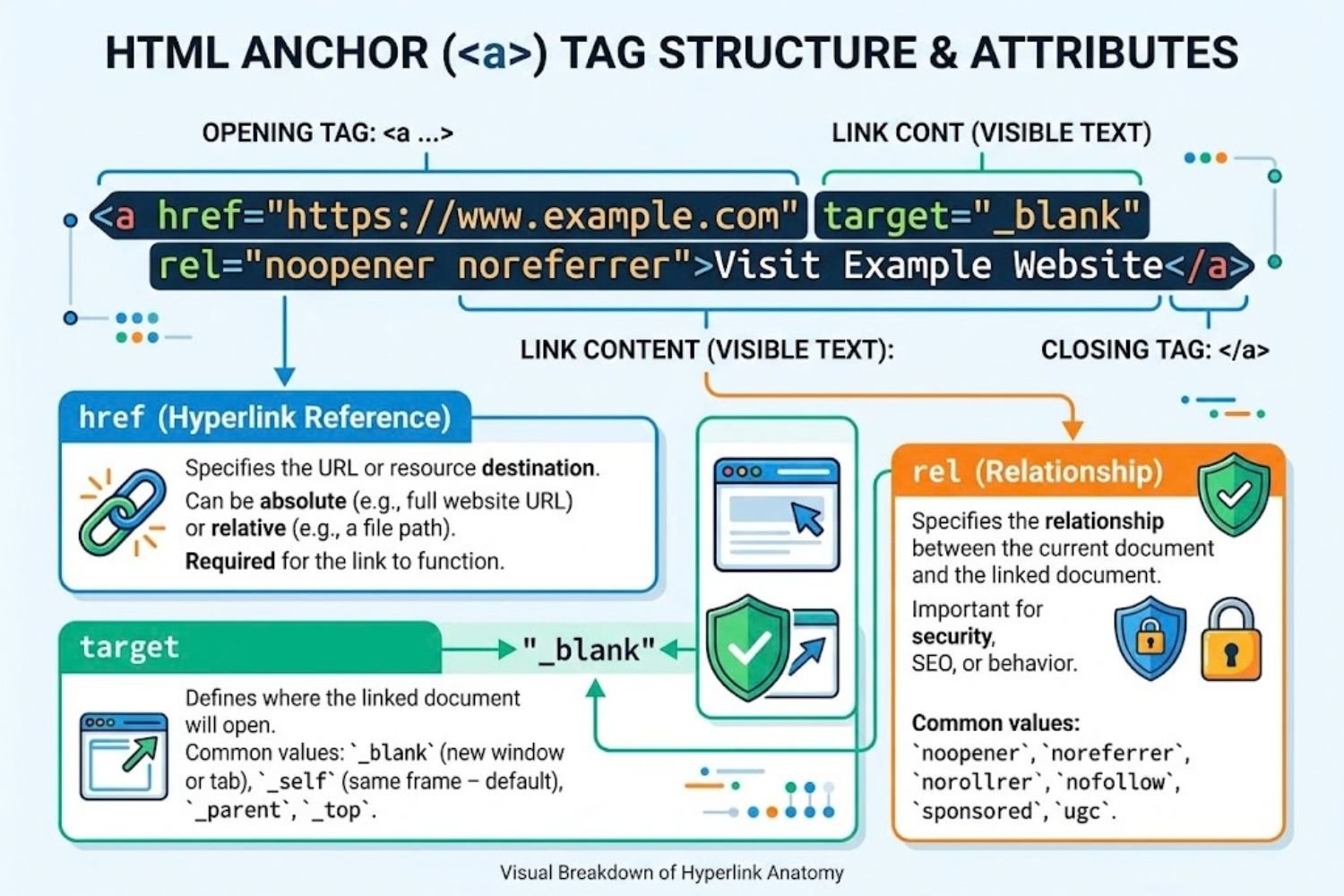
A hyperlink in HTML starts with the anchor tag—<a>—and one essential attribute: href.
Here’s the foundation:
html
<a href="https://www.example.com">Click here</a>That’s it. When users click “Click here,” they go to Example.com. Simple, powerful, foundational.
But here’s what most guides skip: this basic approach has serious problems. The text “Click here” tells a screen reader nothing. Search engines get no context. And you’re missing critical security, accessibility, and SEO opportunities.
Let’s fix that.
Why Your Hyperlink Code Matters More Than You Think
Hyperlinks aren’t just navigation tools. They’re:
- SEO signals. Google uses link context to understand what pages are about.
- Accessibility gates. Screen reader users rely on descriptive link text to understand your site.
- Security vectors. Poorly configured links can expose your users to attacks.
- User trust indicators. Vague link text creates friction and confusion.
Writing hyperlink code correctly takes 30 seconds more than the lazy approach—and impacts everything downstream.
The Anatomy of Production-Ready Hyperlink Code
A complete, professional hyperlink includes far more than most developers realize:
html
<a href="https://www.example.com"
   title="Visit our homepage for more information"
   target="_blank"
   rel="noopener noreferrer"
   aria-label="Visit Example.com homepage (opens in new tab)">
   Visit our homepage
</a>
Each element earns its place:
href — The destination URL. Use absolute URLs for external links (https://...), relative URLs for internal links (/about instead of https://yoursite.com/about).
title — Tooltip text that appears on hover. Not essential, but helpful for users needing clarification. Keep it under 100 characters.
target=”_blank” — Opens the link in a new tab. Use sparingly. Surprising users with new tabs damages trust. Only use when the linked resource is supplementary, not core content.
rel=”noopener noreferrer” — Security layer. When you use target="_blank", this attribute prevents the new page from accessing your site’s window.opener object—blocking a known security vulnerability. Always pair target=”_blank” with this.
aria-label — Accessibility attribute. For screen reader users, this provides additional context (like noting that the link opens in a new tab). Essential when link text alone is ambiguous.
Common Hyperlink Code Patterns (And When to Use Each)
html
<a href="/about">About us</a>Why relative URLs? They’re shorter, cleaner, and work across development and production environments without modification.
External Resource Links
html
<a href="https://example.com/resource"
   rel="external nofollow"
   title="External resource">
   Learn more about this topic
</a>
rel="nofollow" tells search engines not to pass link equity to this page. Use this for user-generated content, affiliate links, or sources you can’t personally vouch for.
Email Links
html
<a href="mailto:contact@example.com?subject=Hello">
   Send us an email
</a>
The ?subject= parameter pre-fills the email subject line. Improves user experience.
Phone Links (Mobile)
html
<a href="tel:+1-555-123-4567">
   Call us: +1 (555) 123-4567
</a>
On mobile devices, this triggers the phone dialer directly. Always include the full phone number with country code.
File Download Links
html
<a href="/documents/whitepaper.pdf"
   download="whitepaper.pdf"
   aria-label="Download whitepaper (PDF, 2.5 MB)">
   Download our whitepaper
</a>
The download attribute tells the browser to download instead of navigate. Aria-label tells screen readers the file type and size.
Anchor Links (Jump to Section)
html
<a href="#section-about">Jump to About section</a>

<!-- Later in the page: -->
<h2 id="section-about">About Us</h2>
Use descriptive IDs (not #section1 or #part2). This helps screen readers, makes your code readable, and improves SEO.
Critical Accessibility Rules for Hyperlink Code
Rule 1: Never Use Vague Link Text
❌ Bad:
html
<p>Learn more about SEO. <a href="/seo-guide">Click here</a></p>✅ Good:
html
<p><a href="/seo-guide">Learn the fundamentals of SEO</a></p>Screen readers often list links without surrounding context. “Click here” tells users nothing. “Learn the fundamentals of SEO” is self-explanatory.
Rule 2: Distinguish Links from Non-Interactive Text
❌ Bad:
html
<p>Visit our site</p>✅ Good:
html
<p><a href="https://example.com">Visit our site</a></p>Users expect underlined, colored text to be clickable. If it looks like a link but isn’t, you’ve created frustration.
Rule 3: Provide Context for Icon Links
❌ Bad:
html
<a href="https://twitter.com/example">
   <i class="icon-twitter"></i>
</a>
✅ Good:
html
<a href="https://twitter.com/example" aria-label="Follow us on Twitter">
   <i class="icon-twitter"></i>
</a>
Without aria-label, screen reader users won’t know where that icon link goes.
Hyperlink Code Across Different Platforms
WordPress/PHP
php
<a href="<?php echo esc_url( home_url( '/about' ) ); ?>">
   About us
</a>
Use esc_url() to prevent malicious code injection.
React/JavaScript
jsx
<a href="https://example.com" rel="noopener noreferrer" target="_blank">
   External link
</a>
React doesn’t require special link handling for standard <a> tags. For internal navigation, use routing libraries like React Router.
Markdown
markdown
[Link text](https://example.com)Markdown’s link syntax is clean. For advanced attributes, convert to HTML.
Advanced Hyperlink Code: Attributes Worth Knowing
download — Force browser to download instead of navigate
html
<a href="/file.zip" download>Download file</a>hreflang — Specify alternate language versions (for <link> tags in <head>)
html
<link rel="alternate" hreflang="es" href="https://example.es/" />ping — Notify a server when link is clicked (use sparingly—privacy concerns)
html
<a href="https://example.com" ping="https://analytics.example.com/click">Link</a>data- attributes* — Store custom data without semantic meaning
html
<a href="/product" data-product-id="12345" data-category="electronics">
   Product name
</a>
Security Best Practices for Hyperlink Code
Always validate URLs in user-generated content. If your site allows users to post links (comments, profiles), validate the protocol:
javascript
function isValidUrl(string) {
  try {
    new URL(string);
    return true;
  } catch (_) {
    return false;
  }
}
Block javascript: protocol links. Prevent XSS attacks:
javascript
if (url.startsWith('javascript:')) {
  return false; // Block this link
}
Use Content Security Policy (CSP) headers to limit where links can navigate:
Content-Security-Policy: default-src 'self'Common Mistakes When Writing Hyperlink Code
Mistake 1: Forgetting rel=”noopener noreferrer” with target=”_blank”
This exposes users to a security vulnerability where the linked page can access your site’s window object.
Mistake 2: Using placeholder URLs
html
<!-- Bad: Placeholder left in production -->
<a href="#">View details</a>
When href is #, the link goes nowhere. If the URL isn’t ready, use href="javascript:void(0)" temporarily, but always replace before publishing.
Mistake 3: Over-using target=”_blank”
Opening links in new tabs surprises users and blocks the back button. Reserve it for supplementary content only.
Mistake 4: Ignoring link color contrast
Links must have sufficient contrast from surrounding text (WCAG AA standard: 4.5:1 ratio for text, 3:1 for large text). Test using tools like WebAIM’s contrast checker.
Mistake 5: Creating ambiguous link text
“Learn more,” “click here,” “this article”—these don’t work for screen readers. Be specific about what users will find.
Testing Your Hyperlink Code
Manual Testing Checklist:
- Link opens correct destination
- Text is descriptive and makes sense out of context
- Color contrast meets WCAG AA standards
- target=”_blank” links have rel=”noopener noreferrer”
- External links have appropriate rel attributes
- Anchor links jump to correct sections
- On mobile, links are at least 44×44 pixels (tap target size)
- Keyboard users can reach and activate every link (Tab key)
Automated Testing Tools:
- axe DevTools — Browser extension for accessibility issues
- WAVE — Web accessibility evaluation tool
- Lighthouse — Chrome DevTools audit for performance and accessibility
- Dead Link Checker — Find broken links across your site
SEO Implications of Your Hyperlink Code
Internal Links & Anchor Text
Use descriptive anchor text with target keywords naturally:
html
<!-- Better for SEO -->
<a href="/python-tutorial">Learn Python programming</a>

<!-- vs. generic link -->
<a href="/python-tutorial">Click here</a>
Google’s algorithms use link context to understand page topics. Descriptive anchor text helps.
Link Authority Flow
Every nofollow link passes no SEO authority. Use it strategically:
- User-generated content (comments, forum posts)
- Sponsored/affiliate links
- Untrusted sources
Don’t use nofollow on your own internal links or trusted external sources.
Site Structure Through Links
Hyperlink code defines information architecture. Strategic linking helps search engines understand hierarchy:
html
<!-- Homepage links to main categories -->
<a href="/products">Products</a>
<a href="/about">About</a>
<a href="/blog">Blog</a>

<!-- Category pages link to specific items -->
<a href="/products/electronics">Electronics</a>
<a href="/products/books">Books</a>
FEATURED SNIPPET OPTIMIZATION
What Is Hyperlink Code? (Definition Box)
Hyperlink code is HTML markup that creates clickable elements directing users to other web pages, files, or resources. The foundation is the <a> tag with an href attribute: <a href="destination">Link text</a>. Production-ready hyperlinks include accessibility attributes, security measures, and descriptive anchor text.
Quick Hyperlink Code Comparison Table
| Type | Syntax | Best For | Security Notes |
|---|---|---|---|
| Internal Link | <a href="/page"> | Site navigation | No special attributes needed |
| External Link | <a href="https://external.com"> | References, resources | Add rel="external" or rel="nofollow" |
| New Tab Link | <a href="url" target="_blank" rel="noopener noreferrer"> | Supplementary content | rel attributes prevent security exploits |
| Email Link | <a href="mailto:email@example.com"> | Contact options | Safe, no external navigation |
| Download Link | <a href="/file.pdf" download> | File downloads | Adds download attribute |
| Anchor Link | <a href="#section-id"> | Page sections | Use descriptive IDs |
FAQ SECTION
1. What’s the difference between href and src attributes?
href (hypertext reference) is used in <a> tags for links. src (source) is used in <img>, <script>, and <iframe> tags to embed resources. They serve different purposes—href for navigation, src for embedding.
2. Do I need to use https:// in all hyperlinks?
Yes. Google now marks HTTP sites as “Not Secure.” Always use https://. For internal links, use relative URLs (/about) which automatically inherit your site’s protocol.
3. What does rel=”nofollow” actually do?
It tells search engines not to pass link equity (PageRank) to the linked page. Google still crawls nofollow links; they just don’t influence that page’s ranking potential. Use for user-generated content, sponsored links, and untrusted sources.
4. Can I style hyperlinks differently than default blue?
Yes, with CSS. However, users expect links to visually indicate they’re clickable—typically through color, underline, or both. Never make links look identical to non-interactive text.
5. Is it bad to have many links on one page?
No hard limit, but excessive linking dilutes PageRank distribution and creates navigation clutter. Aim for purposeful links that add user value. 50-60 links per page is typical for well-structured content.
6. Should I open external links in new tabs by default?
No. Opening new tabs surprises users and blocks the back button. Only use target="_blank" for supplementary content (like downloadable resources, tool links, or reference materials). Let users control tab behavior with their browser.
7. How do I make images clickable links?
Wrap the image in an <a> tag:
html
<a href="/destination">
   <img src="image.jpg" alt="Image description">
</a>
8. What’s the difference between absolute and relative URLs?
Absolute URLs include the full address: https://example.com/page. Relative URLs are shorter: /page. Use relative URLs for internal links—they work across development and production without changes.
9. Can links affect my page’s loading speed?
Not significantly. The link code itself is negligible. However, many external links might delay page load if they trigger DNS lookups. Prioritize above-the-fold content loading.
10. How do I link to a specific part of another website?
Use the anchor (hash) in the destination:
html
<a href="https://example.com/article#section-heading">
   Jump to section
</a>
Only works if the destination page has an ID matching the anchor.
11. What’s the best way to handle links in a mobile-responsive design?
Ensure links are at least 44×44 pixels (tap target size). Test on actual devices. Use :active CSS states for visual feedback on touch devices.
12. Should I add aria-labels to all my links?
No—only when link text isn’t descriptive enough. Over-using aria-labels creates redundancy. Example: <a href="/about">About us</a> doesn’t need aria-label. But icon-only links do: <a href="/twitter" aria-label="Follow on Twitter">🐦</a>
13. How do I fix broken links on my site?
Use automated tools like Screaming Frog or Google Search Console to find 404 errors. Then either:
- Update the link destination
- Delete the link
- Create a redirect (301) from old to new URL
14. Can I use special characters in link text?
Yes. You can use emoji, Unicode characters, etc. However, ensure they display correctly and don’t obscure the link’s purpose. Test across browsers.
15. What’s the best way to highlight current page links in navigation?
Use an active class on the current page’s link:
html
<nav>
  <a href="/about" class="active">About</a>
  <a href="/services">Services</a>
</nav>

<style>
a.active {
  font-weight: bold;
  text-decoration: underline;
}
</style>