
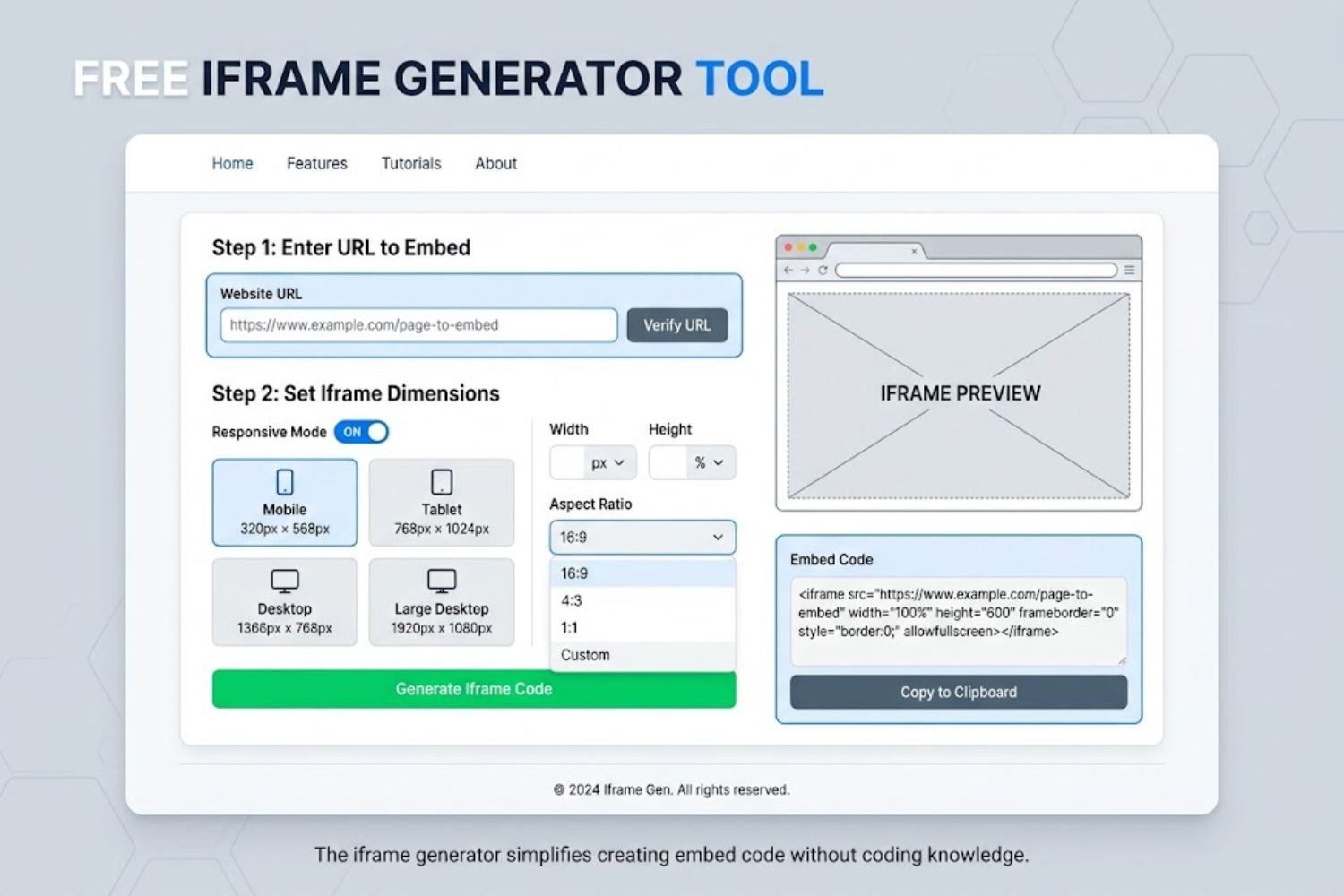
If you’ve ever needed to embed video content, maps, or third-party widgets on your website without manually writing HTML code, you’ve encountered the need for an iframe generator. Whether you’re a beginner or an experienced developer, this guide covers everything you need to know about using an iframe generator effectively—and when to use one in the first place.
What Is an iframe Generator?
An iframe generator is a free online tool that creates HTML iframe code without requiring you to write code manually. You simply input the source URL, set your preferred dimensions, configure security attributes, and the tool outputs ready-to-use HTML code you can paste directly into your website.
An iframe (inline frame) is an HTML element that embeds another HTML document inside the current page. Think of it as a window that displays content from somewhere else while keeping that external content separate from your own page.
How It Works
The process is straightforward:
- Enter the source URL – Paste the link to the content you want to embed
- Customize dimensions – Set width and height in pixels or percentages
- Configure attributes – Choose security settings, allowances, and loading preferences
- Generate code – Click generate and copy the HTML snippet
- Paste on your site – Add it to your website’s HTML or paste into your page builder
No terminal commands. No complex syntax. No coding knowledge required.
Why You Need One
Manual iframe code requires understanding HTML syntax, security attributes, and best practices. An iframe generator eliminates guesswork, ensures proper formatting, and enforces security standards automatically. This saves time, reduces errors, and helps you embed content safely on the first try.
How to Use an iframe Generator (Step-by-Step)
Most iframe generators follow the same fundamental approach. Here’s how to use one effectively:
Step 1: Enter Your Source URL
Find the URL of the content you want to embed. This might be a YouTube video link, Google Map embed URL, or any other web-based content designed for embedding.
Paste the URL into the “Source” field. The generator will validate that it’s embeddable and compatible.
Step 2: Set Width & Height
Enter your preferred dimensions. You have two options:
- Fixed pixels – Exact sizing (e.g., 600px × 400px) – Best when you know your container size precisely
- Responsive percentages – Scales with screen size (e.g., 100% width, auto height) – Recommended for mobile-friendly sites
If you’re unsure, choose responsive. It adapts across devices automatically.
Step 3: Configure Security Attributes
This is where iframe generators shine. Instead of memorizing security attribute names, you check boxes:
- Allow fullscreen – Let users expand content to full-screen
- Allow form submission – For embedded forms that need to submit data
- Allow payment requests – For embedded payment systems
- Restrict scripts – Prevent embedded scripts from accessing your site’s data
An iframe generator typically applies sensible defaults that balance functionality with security.
Step 4: Enable Responsive Behavior (Optional)
Choose whether you want the iframe to maintain aspect ratio when resizing. This is essential for video embeds and media content that need consistent proportions.
Step 5: Generate & Copy
Click the generate button. The tool outputs clean, standards-compliant HTML code ready to paste.
iframe Generator Attributes Explained
Understanding what each attribute does helps you make better decisions when generating code.
src (Source URL)
The URL of the document to embed. This must be a fully qualified URL (starts with http:// or https://).
html
<iframe src="https://example.com/page"></iframe>width & height
Sets the dimensions of the iframe. Can be specified in pixels, percentages, or relative units.
html
<iframe width="600" height="400"></iframe>For responsive designs, use CSS instead:
html
<iframe style="width: 100%; height: auto;"></iframe>frameborder
Controls whether a border appears around the iframe. Modern practice is to handle this with CSS instead:
html
<iframe style="border: none;"></iframe>allow (Permissions Attribute)
Specifies what features the embedded content can access. Common values:
accelerometer– Detect device motioncamera– Access device camerageolocation– Get user’s locationpayment– Process paymentsusb– Access USB devicesvr– Virtual reality headset access
Example:
html
<iframe allow="camera; microphone; payment"></iframe>sandbox (Security Attribute)
Restricts what the embedded content can do. Without sandbox, the embedded document has full privileges. With sandbox enabled, it’s restricted unless you explicitly allow capabilities.
Without restrictions:
html
<iframe sandbox></iframe>With specific allowances:
html
<iframe sandbox="allow-scripts allow-forms allow-same-origin"></iframe>Common sandbox values:
allow-scripts– Run JavaScriptallow-forms– Submit formsallow-same-origin– Access cookies/local storage from same domainallow-popups– Open new windowsallow-pointer-lock– Lock cursor
loading (Performance Attribute)
Controls when the iframe loads:
eager– Load immediately (default)lazy– Load when iframe is about to enter viewport
Use lazy loading for below-the-fold iframes to improve page speed:
html
<iframe loading="lazy"></iframe>Common iframe Use Cases
Video Embeds
The most common use. YouTube, Vimeo, and other video platforms provide embed codes that are already iframe-based. A generator makes it easy to customize dimensions.
html
<iframe width="560" height="315" src="https://www.youtube.com/embed/VIDEO_ID"></iframe>Map Embeds
Google Maps and other mapping services use iframes for embeds. A generator ensures proper sizing and responsiveness.
Calendar Widgets
Google Calendar, Calendly, and similar services use iframes for scheduling widgets.
Advertisement Placement
Third-party ad networks often require iframe-based ad placements for security and performance isolation.
Third-Party Tools & Services
Typeform surveys, Stripe payment forms, customer chat widgets, and countless SaaS tools deliver functionality through embedded iframes.
iframe Generator Best Practices
Security Considerations
Always use the sandbox attribute when embedding untrusted content. Even if you trust the source, it’s a defense-in-depth measure.
Never disable security restrictions just to get something working. If an iframe requires too many permissions, reconsider whether you should embed it at all.
Keep embedded sources updated. If a third-party service you’ve embedded gets compromised, you’re exposed.
Performance Optimization
Use loading="lazy" for iframes below the fold to avoid unnecessary network requests on page load.
Monitor iframe load time. A slow iframe can drag down your entire page’s performance metrics (Core Web Vitals).
Lazy-load with JavaScript if a tool doesn’t support the loading attribute:
javascript
const iframe = document.querySelector('iframe');
const observer = new IntersectionObserver((entries) => {
  if (entries[0].isIntersecting) {
    iframe.src = iframe.dataset.src;
    observer.unobserve(iframe);
  }
});
observer.observe(iframe);
Responsive iframe Implementation
Container-based approach (recommended):
html
<div style="position: relative; width: 100%; padding-bottom: 56.25%; height: 0;">
  <iframe style="position: absolute; top: 0; left: 0; width: 100%; height: 100%;"
          src="..."></iframe>
</div>
This maintains a 16:9 aspect ratio regardless of viewport size.
SEO Impact
Iframes don’t pass link value. Google treats iframe content as separate from your page for ranking purposes. This means:
- Don’t rely on iframes for critical SEO content
- Critical content (text, images, links) should be on the page itself
- Use iframes for supplementary content only
iframe Generator vs. Manual Coding
| Aspect | iframe Generator | Manual HTML |
|---|---|---|
| Speed | 30 seconds | 3-5 minutes |
| Learning Curve | None | Requires HTML knowledge |
| Error Risk | Minimal | Higher |
| Customization | Limited | Unlimited |
| Security Defaults | Built-in best practices | Your responsibility |
| Accessibility | Often included | Easy to overlook |
| Best For | Quick embeds, non-technical users | Complex/custom implementations |
When to use a generator: Quick embeds, standard use cases, non-developers
When to code manually: Complex requirements, extensive customization, security-critical applications
Troubleshooting Common iframe Issues
“iframe Not Loading” – Mixed Content Warning
Problem: The iframe won’t load and browser console shows “Mixed Content” error.
Cause: Your site is HTTPS but the iframe source is HTTP.
Solution: Ensure the iframe source uses HTTPS:
html
<!-- ❌ Don't do this -->
<iframe src="http://example.com"></iframe>

<!-- ✅ Do this -->
<iframe src="https://example.com"></iframe>
If the source doesn’t support HTTPS, you may need to reconsider the embed.
“iframe Sizing Problems” – Content Too Small/Large
Problem: The iframe displays at an awkward size or doesn’t fit your layout.
Cause: Fixed dimensions don’t match your container, or aspect ratio math is wrong.
Solution: Use CSS to control sizing:
css
iframe {
  width: 100%;
  max-width: 600px;
  height: auto;
  aspect-ratio: 16 / 9;
}
“Cross-Origin Errors” – JavaScript Can’t Access iframe
Problem: JavaScript throws “Blocked by CORS policy” or similar errors.
Cause: The iframe is from a different origin (domain, protocol, or port). Browsers restrict cross-origin access for security.
Solution: This is intentional browser security. You cannot directly access cross-origin iframe content. Use postMessage() API for safe cross-origin communication if you control both domains.
“Embedded Form Not Working” – Form Submission Fails
Problem: A form inside an iframe won’t submit.
Cause: Missing allow-forms in sandbox attribute or incorrect form target.
Solution: Ensure the sandbox attribute allows forms:
html
<iframe sandbox="allow-forms allow-scripts allow-same-origin"></iframe>Free iframe Generator Tools Comparison
Zevaan.pk iframe Generator
The Zevaan.pk iframe generator emphasizes simplicity and security defaults. Input your source URL, select dimensions, and get standards-compliant code in seconds. It includes:
- Real-time preview
- Responsive templates
- Security attribute presets
- Copy-to-clipboard functionality
Best for: Beginners, quick embeds, learning how attributes work
When to Use Alternatives
- For video optimization: Use YouTube’s native embed tool (better performance)
- For maps: Google Maps’ embed builder (automatically responsive)
- For complex implementations: Code manually or use a framework helper
Advanced iframe Security & Compliance
CORS (Cross-Origin Resource Sharing) Policies
CORS headers control what cross-origin requests are allowed. If you’re embedding content from your own domain and JavaScript needs to communicate between pages, ensure:
html
<iframe src="https://yourdomain.com/page"></iframe>Use allow-same-origin sandbox attribute if the iframe is from your domain:
html
<iframe sandbox="allow-same-origin allow-scripts"></iframe>CSP (Content Security Policy) Headers
CSP headers on your main page control what iframes can be embedded. If you’re having trouble embedding something, your CSP might be blocking it:
Content-Security-Policy: frame-src 'self' https://trusted-domain.comClickjacking Prevention
The X-Frame-Options header prevents your pages from being embedded in iframes on other sites:
X-Frame-Options: SAMEORIGINThis protects users from clickjacking attacks where malicious sites embed your pages invisibly to trick users.
9. KEY TAKEAWAYS
✓ An iframe generator creates embed code without manual HTML coding
✓ Security attributes (sandbox, allow) are crucial for protecting your site
✓ Responsive sizing with CSS is more effective than fixed pixel dimensions
✓ Always use HTTPS for iframe sources to avoid mixed content warnings
✓ Lazy loading improves performance for below-the-fold iframes
✓ Iframes don’t pass SEO value—use them for supplementary content only
✓ Test embeds across devices and browsers before going live
✓ Monitor third-party iframe performance to protect your page speed
10. FAQ SECTION
Q: What’s the difference between an iframe and an embed tag?
A: Both embed external content, but iframes are more flexible and widely supported. Iframes accept HTML documents; embeds work with plugins (Flash, PDFs). Use iframes for modern web embeds.
Q: Can I change an iframe’s size after it loads?
A: Yes, with JavaScript: document.querySelector('iframe').style.width = '800px'; Or use CSS media queries for responsive resizing.
Q: Is embedding iframes bad for SEO?
A: Iframes don’t harm SEO but don’t help either. Google treats iframe content separately. Keep critical SEO content on your main page, use iframes for supplementary embeds.
Q: How do I make an iframe responsive?
A: Use a container div with padding-bottom padding trick, or use CSS aspect-ratio. Most modern generators output responsive code by default.
Q: What’s the sandbox attribute and why do I need it?
A: Sandbox restricts what embedded content can do. Always use sandbox for untrusted sources. It’s a critical security measure.
Q: Can I embed iframes inside iframes?
A: Yes, you can nest iframes, but it’s rarely needed and can complicate debugging. Avoid unless necessary.
Q: Why does my iframe show “refused to connect” error?
A: The source likely doesn’t allow embedding (X-Frame-Options header), requires authentication, or uses HTTP when your site is HTTPS.
Q: How do I center an iframe on my page?
A: Use CSS: <div style="text-align: center;"><iframe></iframe></div> Or use flexbox for more control.
Q: Can users interact with content inside an iframe?
A: Yes, if the sandbox attribute allows it. Specify which permissions the iframe needs (allow-scripts, allow-forms, etc.).
Q: What’s the performance impact of iframes?
A: Each iframe creates a separate browser context and loads as a separate document. Limit iframes and use lazy loading to minimize impact.
Q: How do I handle iframe responsiveness for mobile?
A: Use CSS media queries or the padding-bottom trick. Test across devices to ensure proper sizing and usability.
Q: Can I style content inside an iframe?
A: Not from outside (cross-origin restriction). If you control both sides, use CSS or inline styles within the iframe source.